EveryHuawei
No Result
View All Result
  • MateBook
  • Tech
    • Gadgets
  • Tech Specs
    • MateBook
  • AI
  • Review
  • News
  • Huawei
  • Gaming
  • MateBook
  • Tech
    • Gadgets
  • Tech Specs
    • MateBook
  • AI
  • Review
  • News
  • Huawei
  • Gaming
No Result
View All Result
EveryHuawei
No Result
View All Result
ADVERTISEMENT
Home News

How to Pair Your HUAWEI Watch or Band with an EMUI Phone

Jordan Luke Obwana by Jordan Luke Obwana
10 months ago
in News
How to Pair Your HUAWEI Watch or Band with an EMUI Phone
ADVERTISEMENT

Pairing your HUAWEI Watch or Band with an EMUI phone is a simple process that allows you to sync your wearable device with your phone for a seamless experience. Whether you’re using a HUAWEI Band, HUAWEI Talkband, or HUAWEI Watch, here’s a step-by-step guide to help you get started.

ADVERTISEMENT

Step 1: Install the Huawei Health App

To begin pairing your HUAWEI Watch or Band with your EMUI phone, you need to install the Huawei Health app. If you’ve already installed it, ensure that it’s updated to the latest version:

  1. Open the Huawei Health app.
  2. Go to Me > Check for updates.
  3. Update the app to the latest version if needed.

If you haven’t yet installed the app, download it from the HUAWEI AppGallery or the Google Play Store.

Step 2: Log In to Huawei Health

After installing or updating the Huawei Health app, open it and log in using your HUAWEI ID. If you don’t already have an ID, follow the prompts to create one:

  1. Go to Me > Log in with HUAWEI ID.
  2. If you don’t have a HUAWEI ID, register for one.
  3. Ensure that you’re logged in using an adult account to ensure smooth pairing with your phone.

Step 3: Power on Your Wearable Device

Next, power on your HUAWEI Watch or Band:

ADVERTISEMENT
  1. Select your preferred language on the device.
  2. Make sure the device is powered on and ready to pair with your EMUI phone.

Step 4: Initiate the Pairing Process

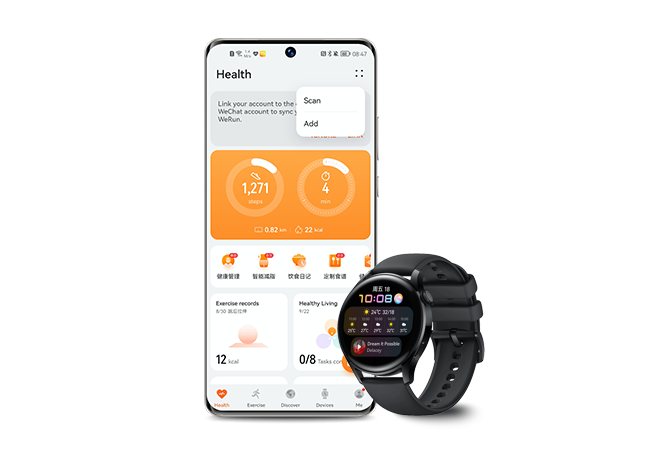
  1. Open the Huawei Health app and go to the Me tab.
  2. Tap the + icon in the upper right corner to add a new device.
  3. The app will search for available devices. Find your HUAWEI Watch or Band in the list and tap on Connect.
  4. Alternatively, you can tap Scan to scan the QR code displayed on your HUAWEI Watch or Band to initiate pairing.

Step 5: Complete the Pairing Process

When the Bluetooth message syncing notification appears on the Huawei Health app screen, tap Agree to continue.

Next, a pairing request will appear on your wearable device. Follow the onscreen instructions on your phone to complete the pairing process.

Pairing the HUAWEI WATCH Buds

If you’re using a HUAWEI WATCH Buds, the process is slightly different. First, pair your HUAWEI Watch with your phone, and the earbuds will automatically start pairing with the phone.

Pairing your HUAWEI Watch or Band with an EMUI phone is quick and easy when you follow these steps. The Huawei Health app ensures that your wearable device stays connected to your phone for a seamless experience. Now, enjoy syncing your fitness data, receiving notifications, and exploring other features that will enhance your device usage.

ADVERTISEMENT

READ: How to Reset Your HUAWEI Bluetooth Earbuds to Factory Settings
Tags: HUAWEI Band pairingHUAWEI Health appHUAWEI TalkbandHUAWEI Watch pairing guidePair HUAWEI Watch with EMUI phonewearable devices setup
ADVERTISEMENT
Previous Post

Huawei Watch GT 6 Coming in Two Variants with Colorful Options

Next Post

How to Reset Your HUAWEI Bluetooth Earbuds to Factory Settings
Related Posts

Huawei Launches Watch Fit 5 Series Globally
News

Huawei Launches Watch Fit 5 Series Globally

by EveryHuawei
May 7, 2026
0

Huawei has officially launched the Huawei Watch Fit 5 series globally during its “Now Is Your Spark” event in Bangkok,...

Read moreDetails
Huawei Pura 90 Multispectral Camera Surprise
Huawei

Huawei Pura 90 Multispectral Camera Surprise

by Jordan Luke Obwana
April 21, 2026
0

The Huawei Pura 90 multispectral camera is emerging as one of the most unexpected innovations in Huawei’s latest smartphone lineup,...

Read moreDetails
Huawei Pura 90 Pro Max Camera Breakthrough
News

Huawei Pura 90 Pro Max Camera Breakthrough

by Jordan Luke Obwana
April 21, 2026
0

The Huawei Pura 90 Pro Max camera is pushing smartphone photography into new territory, introducing industry-first stabilisation and imaging technologies...

Read moreDetails
Huawei Pura X2 Battery Upgrade Leaked
Huawei

Huawei Pura X2 Battery Upgrade Leaked

by Jordan Luke Obwana
March 17, 2026
0

The Huawei Pura X2 battery upgrade reportedly targets 6000mAh capacity, representing a substantial improvement over the previous generation. Specifically, this...

Read moreDetails
Huawei Mate 80 GTS Launch Set for March 23
Huawei

Huawei Mate 80 GTS Launch Set for March 23

by Jordan Luke Obwana
March 17, 2026
0

The Huawei Mate 80 GTS launch may occur March 23, according to industry tipsters following Huawei's official event announcement. Specifically,...

Read moreDetails
HarmonyOS Wins iF Design Award
News

HarmonyOS Wins iF Design Award

by Jordan Luke Obwana
March 10, 2026
0

HarmonyOS iF Design Award recognition highlights Huawei’s growing influence in software design and user experience innovation. The company’s self-developed operating...

Read moreDetails
Load More
Next Post
How to Reset Your HUAWEI Bluetooth Earbuds to Factory Settings
How to Reset Your HUAWEI Bluetooth Earbuds to Factory Settings
HUAWEI FreeBuds SE 3 Review: Ultimate Comfort and Performance

HUAWEI FreeBuds SE 3 Review: Ultimate Comfort and Performance

ADVERTISEMENT
  • About
  • Terms of Use
  • Advertise
  • Contact
  • DMCA
  • Privacy

© 2026 Every Huawei

No Result
View All Result
  • About Us
  • Advertise With EveryHuawei
  • Contact Us
  • DMCA Policy
  • Privacy Policy
  • Terms of Use

© 2026 Every Huawei