EveryHuawei
No Result
View All Result
  • MateBook
  • Tech
    • Gadgets
  • Tech Specs
    • MateBook
  • AI
  • Review
  • News
  • Huawei
  • Gaming
  • MateBook
  • Tech
    • Gadgets
  • Tech Specs
    • MateBook
  • AI
  • Review
  • News
  • Huawei
  • Gaming
No Result
View All Result
EveryHuawei
No Result
View All Result
ADVERTISEMENT

How to Share Files Using Huawei Share

EveryHuawei by EveryHuawei
11 months ago
in News
How to Share Files Using Huawei Share
ADVERTISEMENT

Huawei Share makes it easy to send files across Huawei devices without using cables or mobile data. Whether you want to share photos, videos, documents, or apps, Huawei Share helps you do it quickly. This guide shows you how to share files using Huawei Share on phones and laptops.

ADVERTISEMENT

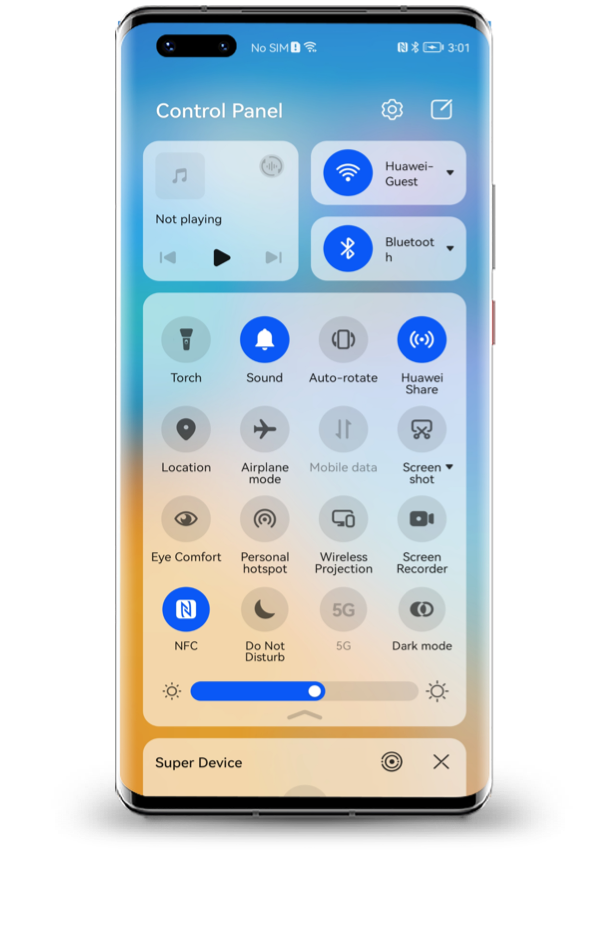
First, turn on Huawei Share. Swipe down your phone’s status bar, then tap the Huawei Share icon. You can also go to Settings > More connections > Huawei Share, then switch it on. When activated, both Wi-Fi and Bluetooth are turned on.

To send files between phones, enable Huawei Share on both devices. Choose your files on the sending phone. Tap and hold the file, tap Share, then select Huawei Share. A list of nearby devices will appear. Tap the name of the receiving device. On the receiving phone, tap Accept. Files will save under Files > Internal Storage > Huawei Share and appear in Gallery > Albums.

Keep both phones close—within 10 meters—and unlocked during the transfer. Ensure the receiving phone has enough storage space. Avoid letting the screens turn off to prevent connection drops.

To connect your phone with a Huawei laptop, make sure your phone supports NFC and Huawei Share. Your laptop must have the Huawei Share icon and run PC Manager 9.0 or later. For advanced features like Multi-screen Collaboration, PC Manager 10.0 or later is required.

ADVERTISEMENT

First, enable Wi-Fi, Bluetooth, and NFC on your phone. Then, on your laptop, open PC Manager and press F10. Accept the user agreement. Tap your phone’s NFC area to the Huawei Share icon on the laptop. Hold it there until you feel a vibration or hear a sound. Follow the prompts on both screens to finish pairing.

After pairing, you can answer calls, send messages, and drag files from your phone to the laptop screen. You can also copy and paste between the two devices.

Huawei Share also lets you tap your phone to the speaker for instant music playback or pair multiple speakers with a simple shake. These smart features show just how smooth the Huawei ecosystem has become.

Now that you know how to share files using Huawei Share, try it out. It’s fast, efficient, and built for seamless interaction between Huawei phones, laptops, and accessories.
ADVERTISEMENT

READ: Use Phone Clone to Move Data to Your New Device

Tags: how to share files using Huawei ShareHuawei file sharingHuawei Share guideHuawei Share laptop connectNFC Huawei file transfer
ADVERTISEMENT
Previous Post

HUAWEI Sound Joy 2: 26-Hour Bluetooth Speaker Power

Next Post

How to Use NIGHT Mode on Huawei for Better Low-Light Photos

Related Posts

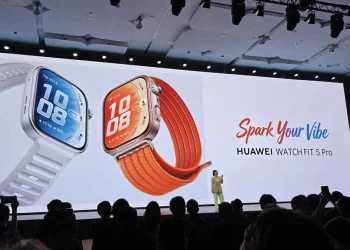
Huawei Launches Watch Fit 5 Series Globally
News

Huawei Launches Watch Fit 5 Series Globally

by EveryHuawei
May 7, 2026
0

Huawei has officially launched the Huawei Watch Fit 5 series globally during its “Now Is Your Spark” event in Bangkok,...

Read moreDetails
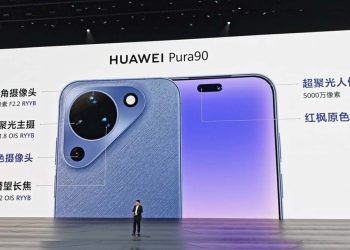
Huawei Pura 90 Multispectral Camera Surprise
Huawei

Huawei Pura 90 Multispectral Camera Surprise

by EveryHuawei
April 21, 2026
0

The Huawei Pura 90 multispectral camera is emerging as one of the most unexpected innovations in Huawei’s latest smartphone lineup,...

Read moreDetails
Huawei Pura 90 Pro Max Camera Breakthrough
News

Huawei Pura 90 Pro Max Camera Breakthrough

by EveryHuawei
April 21, 2026
0

The Huawei Pura 90 Pro Max camera is pushing smartphone photography into new territory, introducing industry-first stabilisation and imaging technologies...

Read moreDetails
Huawei Pura X2 Battery Upgrade Leaked
Huawei

Huawei Pura X2 Battery Upgrade Leaked

by EveryHuawei
March 17, 2026
0

The Huawei Pura X2 battery upgrade reportedly targets 6000mAh capacity, representing a substantial improvement over the previous generation. Specifically, this...

Read moreDetails
Huawei Mate 80 GTS Launch Set for March 23
Huawei

Huawei Mate 80 GTS Launch Set for March 23

by EveryHuawei
March 17, 2026
0

The Huawei Mate 80 GTS launch may occur March 23, according to industry tipsters following Huawei's official event announcement. Specifically,...

Read moreDetails
HarmonyOS Wins iF Design Award
News

HarmonyOS Wins iF Design Award

by EveryHuawei
March 10, 2026
0

HarmonyOS iF Design Award recognition highlights Huawei’s growing influence in software design and user experience innovation. The company’s self-developed operating...

Read moreDetails
Load More
Next Post
How to Use NIGHT Mode on Huawei for Better Low-Light Photos

How to Use NIGHT Mode on Huawei for Better Low-Light Photos

Spain Huawei wiretap contracts

Spain Awards €12.3M Wiretap Contracts to Huawei Despite Espionage Fears

ADVERTISEMENT
  • About
  • Terms of Use
  • Advertise
  • Contact
  • DMCA
  • Privacy

© 2026 Every Huawei

No Result
View All Result
  • About Us
  • Advertise With EveryHuawei
  • Contact Us
  • DMCA Policy
  • Privacy Policy
  • Terms of Use

© 2026 Every Huawei